App settings
App settings control how your application behaves for every user: the language of the interface, which timezone dates live in, whether the app is reachable at all, and advanced toggles that affect performance during bulk work. Getting these right once saves confusion later — wrong timezones produce off-by-one deadlines; an inactive old app stops accidental edits; a temporary pause of automatic fields can turn a multi-hour import into minutes.
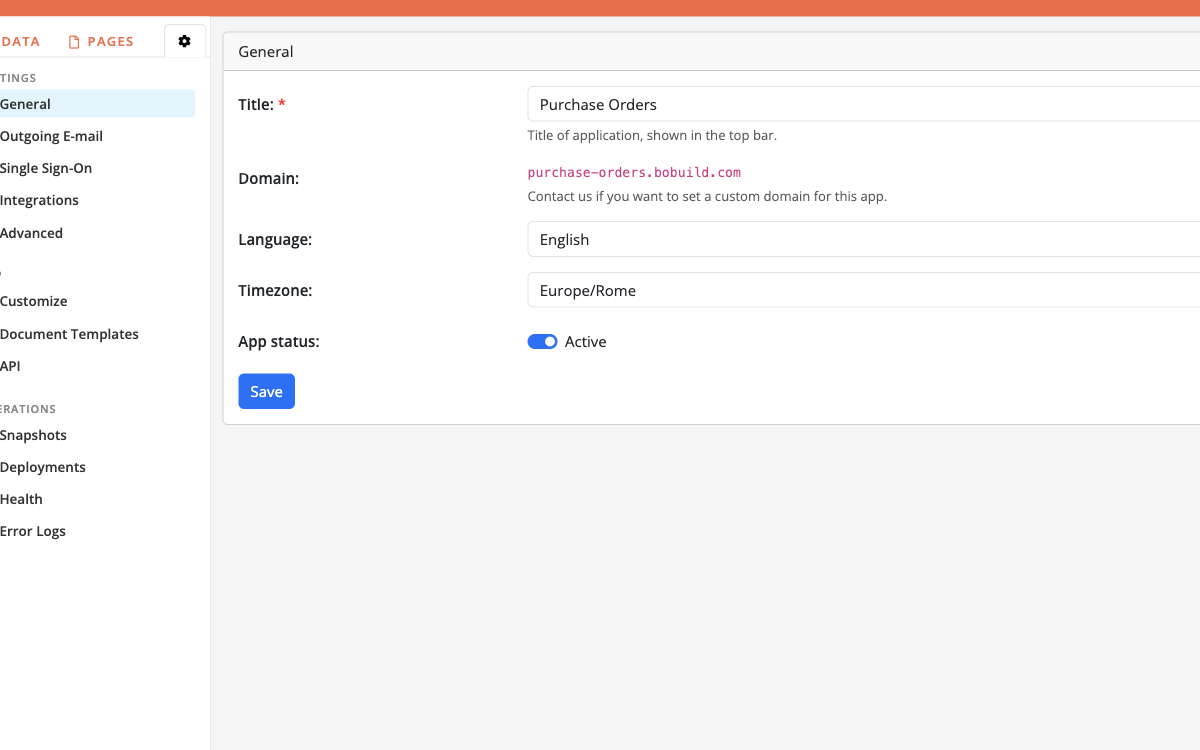
Typical scenarios:
- a public Italian portal where buttons, filters, and system labels should appear in Italian;
- an ops team in
Europe/Romethat schedules reminders and reports against local business hours; - an obsolete project you want to keep for history but mark inactive so nobody keeps using it;
- a large CSV import or API sync where you temporarily disable automatic fields to finish faster, then re-enable and recalculate once.
Opening Settings
In the Builder sidebar, open Settings. The settings area is grouped as Settings (General, Outgoing E-mail, Integrations, Advanced), App (Customize, Document Templates, API), and Operations (Snapshots, Deployments, App Health, Error Logs). See also Customize for appearance and SharePoint under Integrations.
Search palette
Press Ctrl+K (or Cmd+K on macOS) in the Builder to open the search palette. Jump to pages, objects, fields, tasks, and common settings without hunting through the sidebar.
App Health
Open App Health to run a configuration check across the app: broken references, incomplete filters or task actions, heavy automatic-field cascades from tasks or forms, and similar issues. Findings link into the Builder where possible; use Fix with AI agent when MCP is enabled. Object-task previews also show a performance impact tree when writes would refresh many autos — see Running, stopping, and performance.
Annotations
On widgets, fields, tasks (and task actions), API endpoints, and document templates, use Add note for an internal annotation. Notes are Builder-only — they are not shown to end users and are useful for documenting why a filter or action exists.
General settings
| Setting | Purpose |
|---|---|
| Title | Name shown in the top bar of the live app |
| Domain | The app hostname. On Bobuild Cloud, custom domains are arranged with us; on Bobuild Enterprise you can set the host in this form. See Custom domains. |
| Language | Locale for the application UI (currently English, Italian, French, Spanish, or Portuguese) |
| Timezone | IANA timezone for live date/time values, “now” comparisons in filters and display rules, NOW(), and scheduled task run times. Values are stored as wall-clock times in this zone (no UTC conversion on save/display). Default Europe/Rome. |
| App status → Active | When off, the app is inactive (useful for retired or paused projects) |
Save after changing any of these values.
Advanced: structure lock and automatic fields
Open Advanced in the sidebar for deploy-target protection and performance-oriented controls around automatic fields.
Lock structure edits
Turn on Lock structure edits (deploy-only) when this app should only receive configuration through Deployments (Deployments turn the lock on automatically on the target). While locked, Builder changes to objects, pages, fields, widgets, and tasks are blocked. You can still browse and edit records, use the SQL Console, and manage unlock / deploy / snapshot from Settings. Unlock here if you need to edit structure outside of a deploy.
Disable automatic fields
Turn on Disable automatic fields when you need faster throughput for:
- long-running tasks
- heavy API traffic
- large CSV imports
While automatic fields are disabled, do not run tasks that depend on automatic field values — those values will not be kept up to date.
When you turn the option off again, Bobuild starts a full recalculation. That pass can take a while on large apps, but it is usually still faster than paying the recalculation cost on every individual write during the bulk job.
Recalculation log
During (and after) a re-enable recalculation you can open the Recalculation Log to see:
- progress (fields done / total, percentage, ETA)
- per-field status and duration
- whether the run completed or was cancelled
If a recalculation is in progress, you can Stop recalculation. Remaining fields will not be updated, and automatic fields stay disabled until you re-enable them and let a run finish (or accept the incomplete state consciously).
Export App
On the same Advanced page, use Download export to download the full app configuration as a ZIP file (objects, pages, tasks, templates, branding files such as logo and favicon, and related structure).
Record data is not included. Prefer a snapshot when you need a backup of both structure and data, or Deployments when promoting configuration between apps.
Error Logs
Open Error Logs in the sidebar to review failures from live automations that are not shown immediately to the user:
- SQL command — failed Run SQL command task actions (message plus the statement)
- Document generation — failed Generate document actions (template, format, record, and stage when available)
Use Refresh to reload the list. The log is for diagnosis — fix the task or template in the Builder, then run it again.
Interactive SQL Console errors stay in the Console UI and are not written here.
A practical pattern: disable automatic fields → run the import or batch → re-enable → watch the recalculation log until it completes → smoke-test a few records.