Timeline widget
The Timeline widget lists records as a vertical sequence of dated events — activity feeds, case histories, milestone logs — ordered along a date or date/time field.
Typical scenarios:
- a history of status changes or notes on a request;
- upcoming and past appointments for a customer;
- a public chronicle of announcements or publications.
Prefer a grid when operators need many columns, bulk tasks, or CSV export. Prefer a Timeline when the story is the sequence of dates.
Example
- How to configure it in the builder
- How it looks like in the resulting app
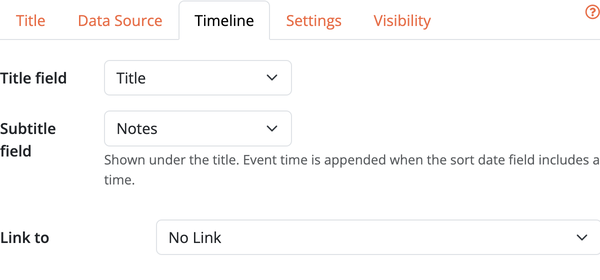
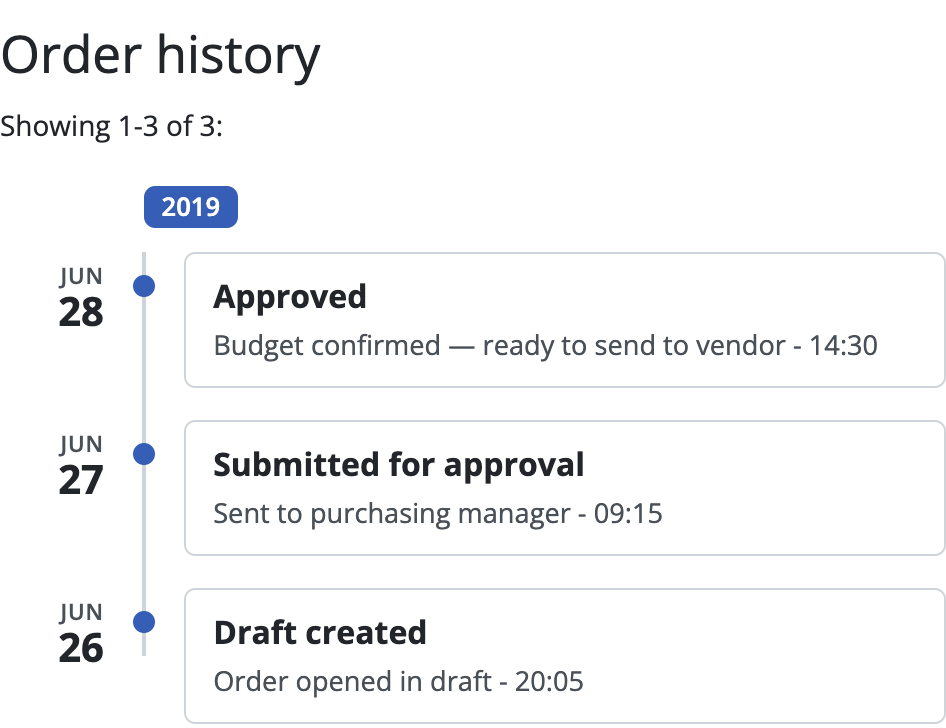
How to create a Timeline
- Drag a Timeline widget onto a page and choose the object to list.
- Set the primary sort field to a Date or Date and Time field — that field is both the timeline axis and the main ordering.
- Choose a Title field (and optionally a Subtitle field) for each event card.
- Optionally link each event to a detail or edit page (popup supported).
Years appear as separators when the list spans more than one year. If the sort field includes a time, the time is shown on the card (and appended under the subtitle when relevant).
Options
- Filter / conditions — which records appear.
- User filters and search — same pattern as grids (including default filters when filtering is enabled).
- Pagination — how many events per page.
- No records — message when the timeline is empty.
- Hide if empty — hide the whole widget when there are no events.
- Width and visibility — like other widgets.
tip
Further sort steps after the date axis may use any sortable field (for example title within the same day).