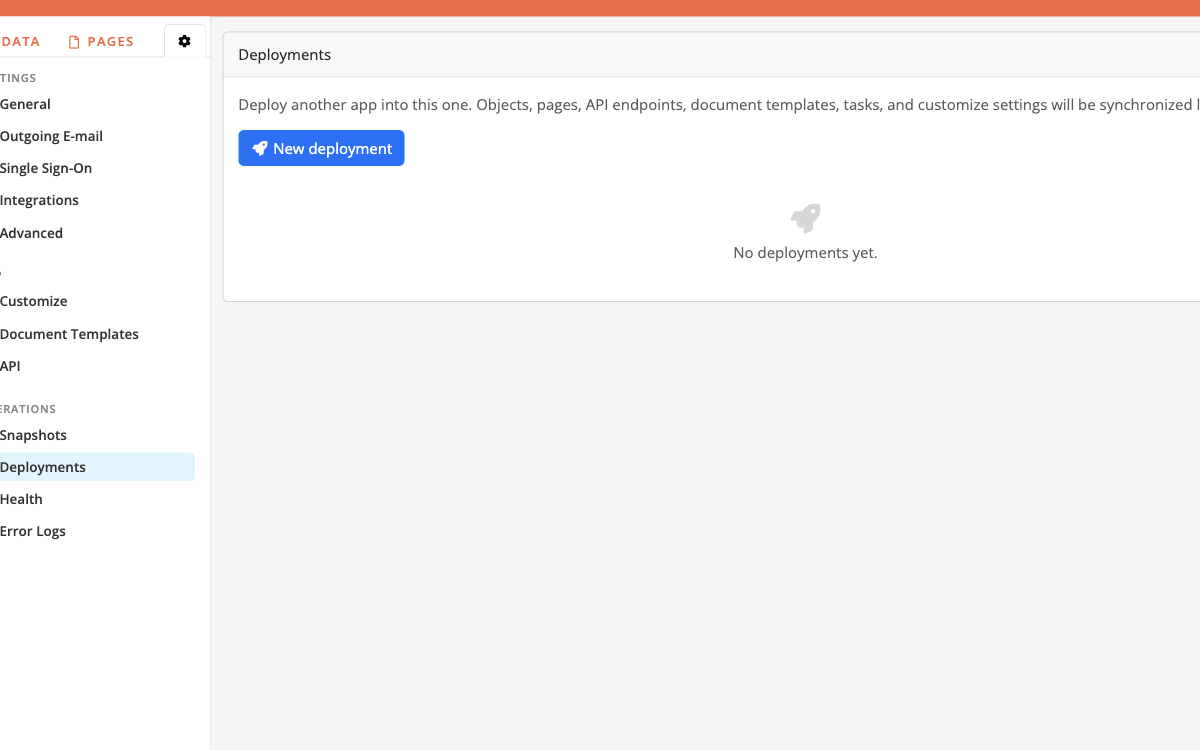
Deployments
Build and test in a staging app, then deploy configuration into production while live data stays untouched. Deployments are how you promote pages, objects, tasks, API endpoints, document templates, and customize settings with a controlled, reviewable release — instead of rebuilding the same changes twice by hand.
Typical scenarios:
- you maintain a staging app where you try new forms and workflows, then push the result to the live portal;
- several people edit a development copy and you want a single, auditable promotion into production;
- you need to roll forward from a known-good snapshot rather than from whatever is live on staging right now;
- you want an automatic backup of production before the new configuration lands, so a bad release is recoverable.
The payoff is safer releases, less double work, and a clear history of what changed when.
What gets deployed
A deployment synchronizes configuration from a source app into the current (target) app:
- objects and fields
- pages and widgets
- tasks
- API endpoints
- document templates
- customize settings (logo, CSS, and so on)
Record data in the target app is not overwritten. Even if you pick a snapshot that contains data, only the configuration from that snapshot is applied.
Deployments turn on Lock structure edits on the target automatically so production structure is not edited by hand between releases. Records and the SQL Console stay usable while the lock is on — see Advanced settings.
Where to find them
In the Builder, open the app you want to update (the target), then choose Deployments in the sidebar.
Launching a deployment
- Click to start a new deployment.
- Choose the source app (another app in your account).
- Choose the source version:
- Current (live) — use the source app as it is now (a fresh source snapshot is captured at run time)
- From snapshot — pick an existing snapshot of the source app
- Click Check compatibility. The deploy is blocked until the check passes. Warnings may appear for review even when the check succeeds; failures must be fixed before you can continue.
- When the source is Current (live), Bobuild also runs a configuration health check on the source app and lists errors and warnings (broken references, invalid filters, and similar). If errors are reported, you must tick I understand the source app has configuration errors and want to deploy anyway before Launch is enabled. This health check is not run when you deploy From snapshot.
- Enter a short summary (commit message) describing the release.
- Click Launch.
Before the deployment runs, Bobuild automatically creates a snapshot of the target app (structure and data). If something goes wrong, you can restore that snapshot into a new app and recover.
Compatibility and blocking conditions
You cannot start a deployment while:
- another deployment is already running on this app, or
- structural background jobs are still pending (schema, triggers, recalculation, snapshots, and similar)
Live app jobs such as form submits, grid/object tasks, and CSV imports do not block starting a deployment.
If the source snapshot includes data, the UI warns you that only configuration will be deployed; snapshot data is ignored.
If a deployment fails, fix the underlying issue before retrying. Failed runs appear in the history with details.
Deployment history
The Deployments page lists past runs with status, timing, source app, optional source snapshot ID, and your summary message. Open a completed deployment to review changes grouped by area — what was created, modified, deleted, or deprecated — so you can audit a release after the fact.
Recommended workflow
- Develop and test in a dedicated staging app.
- Optionally take a snapshot of staging when you are happy with a version.
- On production, open Deployments, select staging (live or that snapshot), pass compatibility, and launch.
- Smoke-test the live app. If needed, use the automatic pre-deploy snapshot as your rollback starting point.
For backup cadence, go-live checks, and safe schema changes, see the Production playbook. If a release looks wrong, see Troubleshooting.