Importer widget
The Importer widget lets end users load CSV or Excel data into your app without opening the Builder. That is different from a one-off import you run yourself as an admin: here operators, partners, or citizens upload files as part of a normal workflow — saving support tickets and keeping bulk entry inside permissions you already defined.
Typical scenarios:
- a municipality clerk uploads a monthly list of applicants;
- a partner drops a product catalogue update into a B2B portal;
- an ops team re-imports corrected rows and needs a clear log when something fails;
- after import, users should land on a confirmation page or the new batch’s detail screen.
- How to configure it in the builder
- How it looks like in the resulting app
For a one-time load by an administrator, use Import on the object in the Builder instead — see Builder import and export. The Builder import can also create new fields from CSV headers; the live Importer widget maps into fields that already exist.
How it works
- Drag an Importer widget onto a page and choose the target object.
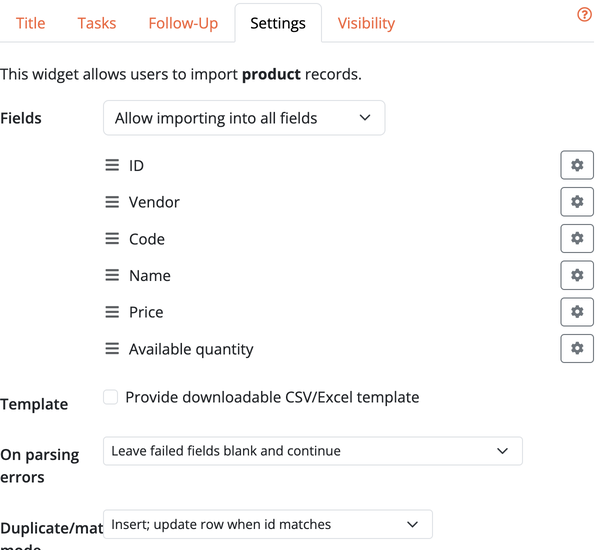
- Configure which fields may be imported, templates, duplicate handling, and error policy (see below).
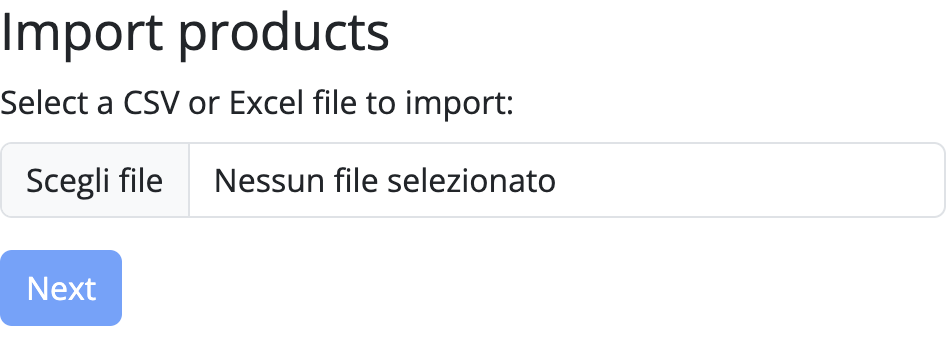
- Users upload a CSV or Excel (
.xlsx) file, confirm column mapping (unless you locked it), and start the import. - Bobuild processes rows (asynchronously when the job is large), shows progress, then runs any configured tasks and Follow-Up rules.
While a job runs, the UI shows Import in progress... and polls until completion before redirecting — so users are not sent away before the data is ready.
Completely blank rows (common trailing newlines from spreadsheets) are skipped and do not create empty records.
Widget options
Open the Importer settings in the Builder to shape the upload experience.
Fields and column settings
Choose which object fields appear in the importer. For each field you can set:
- Column header — expected header label (defaults to the field label)
- Column is required — reject the upload unless that column is mapped
- Value is required — reject rows where the cell is empty
- Map to field — for Reference fields, which field of the linked object the file value identifies (default: id)
- Separator — for Multiple Choice / Reference Array, character used to split cell values (default: comma)
You can restrict imports to the listed fields only, or keep every importable field available while still controlling order and per-field settings.
Template
Enable Provide downloadable CSV/Excel template so users download a file prefilled with the expected headers. Optionally Include empty sample row in template.
On parsing errors
| Policy | Behaviour |
|---|---|
| Leave failed fields blank and continue | Insert the row; cells that failed parsing stay empty |
| Skip rows with parsing errors | Drop entire rows that have any field parsing error |
| Abort the whole import if any parsing error is found | Dry-run first; do not import if any error is found |
Duplicate/match mode
| Mode | Behaviour |
|---|---|
| Insert; update row when id matches | New rows insert; rows with a matching id update that record |
| Insert only (skip duplicates) | Never overwrite existing rows |
| Update existing row when unique key matches | Match on the object’s uniqueness constraints and update |
CSV format defaults
Set default Separator, Encoding, and Treat NULL as empty string. Enable Lock format options for end users when partners must not change those settings.
Mapping and recent imports
- Require headers line — always treat the first row as headers
- Disable custom mappings — mapping screen is read-only (preview only)
- Skip mapping screen when headers match — with locked mappings and required headers, go straight from upload to import when auto-map succeeds
- Show recent imports on the upload screen — list recent jobs for this widget
Mapping options (end users)
When mappings are not locked, users can still adjust:
- Ignore the first row (header line), unless you require headers
- separator and encoding (unless locked)
- Treat "NULL" as empty string
- column-to-field mapping
Follow-Up
Open the Follow-Up tab to decide where users go when the job finishes (same page, parent page, caller page for popups, a child page, or another page). You can show a confirmation message (default: The import job was completed.).
If a task during the import creates related records, follow-ups can target pages that need those new ids — the same pattern as form follow-ups.
Tasks after import
Configure tasks to run on each imported record (or related records): send e-mail, update connected data, store the uploaded file, and more. Each importer task can include multiple actions, the same way as form or object tasks. See tasks and the form widget for action details.
Useful importer-specific action: set a file field to the imported file so the original CSV/Excel is kept on the record for audit.
Import logs
For imports started from the Builder Import dialog, use View import logs to inspect status, mappings, and row errors while a long run is in progress (and after it finishes). That visibility turns opaque failures into fixable mapping issues — especially valuable on large files.