Scheduled tasks
Some work should happen even when nobody is clicking a button: reminders the week before an event, nightly status syncs, weekly digests, or advancing a workflow after a deadline. Scheduled tasks run automatically on an hourly, daily, weekly, or monthly basis so those routines stay reliable without calendar alerts or manual batch runs.
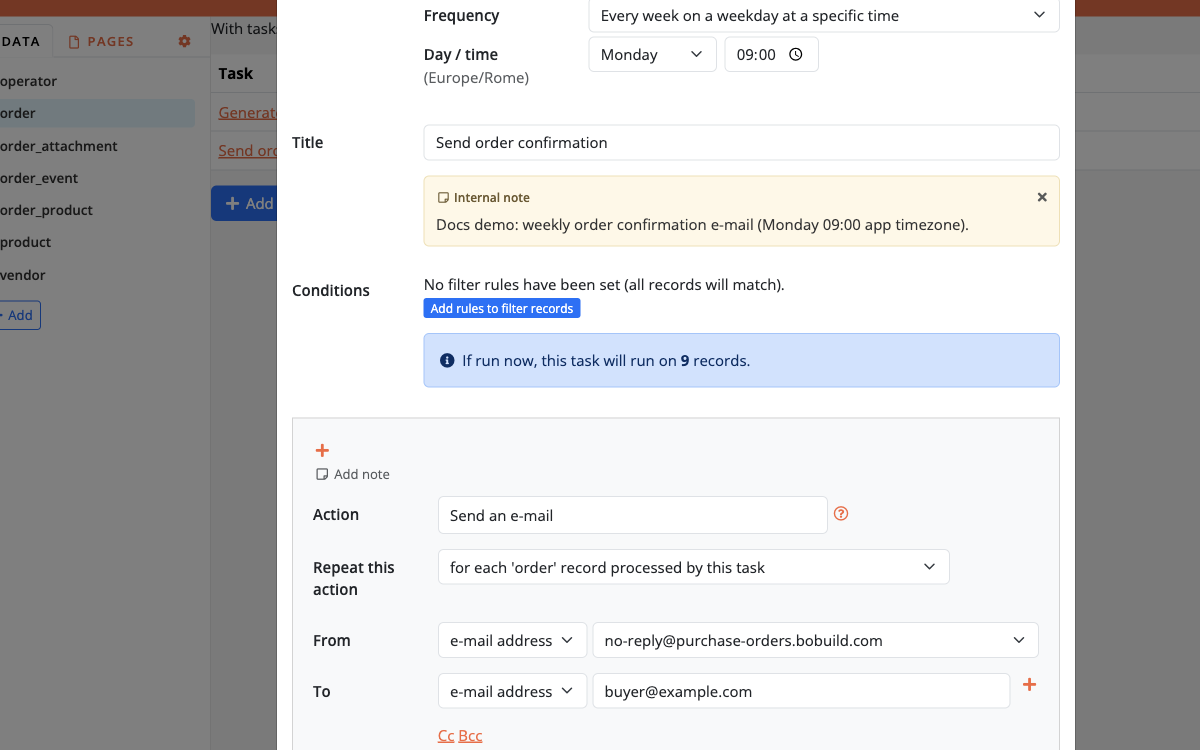
Typical scenarios:
- send a reminder to attendees who have not completed a form;
- close or archive requests older than N days;
- recalculate or refresh derived data overnight when traffic is low;
- escalate open tickets that have had no update since yesterday.
How to schedule a task
Create or open an object (batch) task as usual — conditions plus actions — then enable scheduling and choose the frequency: hourly, daily, weekly, or monthly (or an advanced cron expression).
Schedule times use the app Timezone from Settings (for example Europe/Rome), not UTC. The Builder shows that timezone next to daily/weekly time pickers and in the cron help text. Minimum spacing between runs is 15 minutes.
The task still selects records with its filter/conditions, then runs the configured actions on each match, just like a manual batch task. The only difference is when it starts.
Contact us in order to enable scheduled tasks for your app.
Tips
- Keep filters tight so a schedule cannot accidentally touch the whole database.
- Prefer staging first: verify the same task manually, then turn on the schedule.
- For e-mail heavy jobs, confirm Outgoing E-mail is enabled (and not intercepting) in production.
- Combine with record operations and e-mail actions the same way you would in any other task.