Snapshots
Before a large import, a structural redesign, or any change you might regret, take a snapshot. Snapshots are point-in-time backups of your app so you can spin up a full working copy later — without rebuilding from scratch or hunting for yesterday's configuration.
Typical scenarios:
- you are about to reshape objects and pages and want a safety net if the redesign goes wrong;
- you need a training or demo copy that mirrors production data at a known date;
- a CSV import or bulk task might touch thousands of records and you want an easy rollback path;
- you are preparing a deployment and want a known-good version to promote later.
Snapshots save time when something breaks, and they make risky work feel routine instead of stressful.
Where to find them
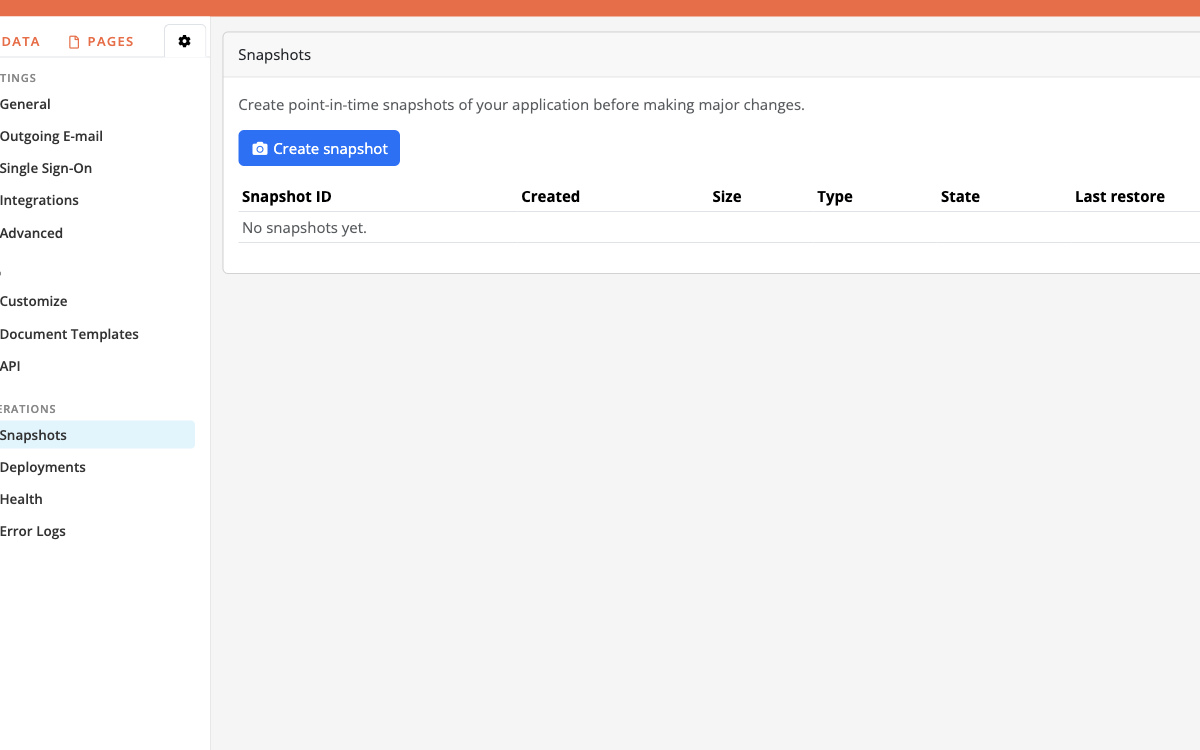
In the Builder, open the app sidebar and choose Snapshots.
Creating a snapshot
Click Create snapshot and choose what to include:
| Option | What it stores |
|---|---|
| App structure and data | Objects, pages, tasks, templates, settings, and all records (including uploaded files) |
| App structure only | Configuration without record data — lighter, useful when you only need the blueprint |
Only one snapshot can be created at a time. While a snapshot is in progress, creation is disabled until it finishes.
Each snapshot appears in the list with an ID, creation time, size, type, and state (in progress, done, failed, and so on). When a snapshot is ready (done), you can restore or delete it.
Restoring a snapshot
Restore always creates a new app. It does not overwrite the app you are working in. That keeps production safe: you get a parallel copy to inspect, compare, or promote.
When you click Restore, configure:
- App name — the URL identifier (max 40 characters, no spaces or special characters). You cannot change this later.
- Title — the display name (you can change this later).
- Restore mode:
- App structure and data — full restore including uploaded files
- App structure and data (but no files) — records without file binaries (faster / lighter when files are not needed)
- App structure only — configuration only
- Activate this app — whether the new app should be active immediately
If the original snapshot was structure only, restore is limited to structure only.
Important caveats
- Restoring requires room under your account's app limit. If the limit is reached, restore is blocked until you free capacity or upgrade.
- Outgoing e-mail is disabled on the restored app. Re-enable it manually under Outgoing E-mail when you are ready — this avoids accidental messages from a clone.
- Collaborators from the live app are copied onto the restored app where applicable.
Snapshots and deployments
Deployments can use a snapshot as the source version when pushing configuration into another app. See Deployments for the full workflow. Deployments also create an automatic snapshot of the target app before applying changes, so you can restore if a deploy goes wrong.
For when to snapshot in day-to-day operations, see the Production playbook.