Pages
Pages are the screens of your app — portals for the public, backoffices for staff, and nested detail views opened from grids. A few page-level settings have a large impact on navigation and safety: which portal opens on the bare domain, whether copying a page brings its children along, when a widget is visible, whether a page appears in breadcrumbs, and whether widgets sit in a left sidebar rail.
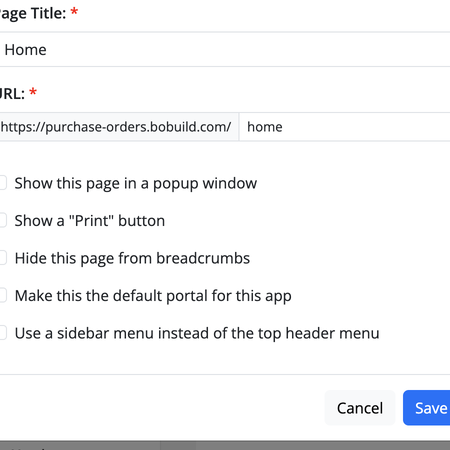
- How to configure it in the builder
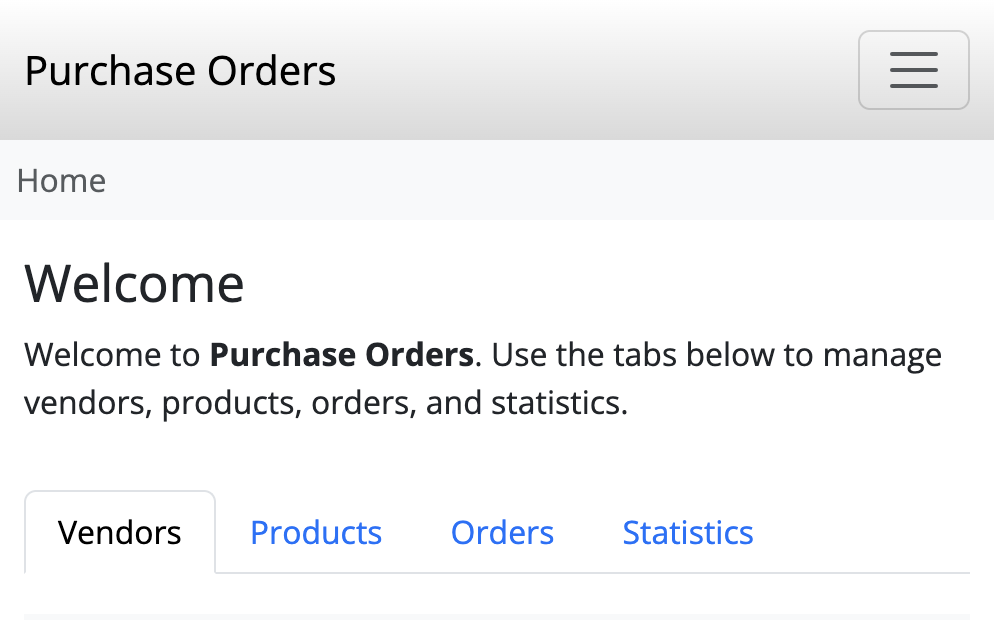
- How it looks like in the resulting app
Typical scenarios:
- the company domain should open the citizen portal, not the internal ops area;
- you duplicate a whole “Request” flow (list + detail + edit) in one step;
- a submit button should appear only when related approval data exists two hops away in the data model;
- a technical sub-page should stay reachable by URL but stay out of the breadcrumb trail;
- an Index or menu sits in a collapsible left rail next to the main content.
For the basics of pages and widgets, see Basic concepts.
Undo and redo
On a page in the Builder, use Undo / Redo to reverse or re-apply the last configuration changes on that page (widget edits, layout, and similar). The stack is per page — switching pages keeps each page’s own history.
Orphan pages
When a child page loses its last incoming link from the parent (for example you remove a grid column link or a menu item), Bobuild does not delete the page automatically. It becomes an orphan: still in the sidebar (dimmed), with a warning that it is not reachable by users until you re-link it from a widget on the parent, or delete it if you no longer need it.
Default portal
On a top-level (root) page, you can enable Make this the default portal for this app. Visitors who open the app root URL (for instance https://myapp.bobuild.com/) land on that portal instead of getting a blank page.
Use this when you have multiple portals (public + backoffice) and want a deliberate home screen — fewer confused first visits, clearer bookmarks.
Copying pages
When you copy a page, enable Copy subpages recursively to duplicate the whole subtree (for example a list page plus its detail and edit children). That saves rebuilding nested navigation by hand every time you clone a working pattern.
Hide from breadcrumbs
Enable Hide this page from breadcrumbs when the page should remain reachable (links, redirects, bookmarked URLs) but should not appear in the breadcrumb trail. That keeps navigation tidy for “utility” or intermediate pages that would otherwise clutter the path.
Print button
Optionally enable Show a "Print" button on the page so users can print the current screen without browser menus — useful for summaries and certificates-style views.
Page sidebar
In the Builder page editor, widgets can sit in the main column or in a sidebar zone (left rail). Drag a widget into the sidebar zone (or set its placement to sidebar). The live page shows the rail only when at least one visible widget uses sidebar placement — otherwise the main column uses the full width.
On the live page, visitors can collapse the rail and drag the separator to resize it (keyboard-accessible). On narrow viewports the sidebar stacks above the main content. Popup pages ignore sidebar placement and render widgets in the main flow.
Width settings apply in the main column; sidebar widgets fill the rail. An Index in the sidebar next to a detail form is a common master–detail pattern.
Sidebar navigation menu
On a top-level page, open Edit page settings… and enable Use a sidebar menu instead of the top header menu. The same Menu widgets that would appear in the header are shown as a left sidenav instead. Optionally set a Sidebar brand icon (Font Awesome) for that portal. Nested (child) pages inherit the root portal chrome and cannot toggle this flag themselves.
Auto-update when the record changes
On pages that bind a record (an object is set and the page requires one — typical detail/edit screens), open Edit page settings… and under Advanced enable Auto-update this page when this record changes.
While someone has that page open, Bobuild reloads it when the same record is updated or deleted — including changes from forms, tasks, the API, imports, and auto fields. Useful for dashboards and detail views that several people keep open while others edit the same row.
Only the page’s own record is watched. If the interesting data lives on a related or child object, update a field (or an auto field) on the page’s object so that row changes and the refresh fires.
Optional: Discard unsaved form changes when auto-updating. When off (default), users with dirty forms see a refresh prompt instead of losing edits. When on, the soft reload proceeds and discards unsaved form input.
Widget visibility
Each widget can define Show widget when rules under Visibility. Filters can reach two levels of related fields (not only the page’s main object), so you can hide or show UI based on connected data — for example show “Pay invoice” only when the linked order’s customer is marked active.
Tight visibility rules reduce clutter and prevent users from taking actions that do not apply to the current record. The same mechanism is how a Stepper wizard shows only one form at a time.