Custom View widget
When built-in widgets are not enough — a specialised chart, a kanban-style board, an interactive map, or a compact dashboard tile — the Custom View widget lets you render the page with your own JavaScript while Bobuild still loads the data safely for you. You keep authentication, filters, and object permissions; you only write the presentation layer.
Typical scenarios:
- a custom dashboard that mixes several objects into one screen;
- a visualisation library your designers already standardised on;
- a dense “command center” layout that grids and charts cannot express alone;
- prototyping a UI idea quickly without waiting for a new first-party widget.
The value is speed and control: ship a tailored experience without moving data out of Bobuild or exposing raw database credentials.
- How to configure it in the builder
- How it looks like in the resulting app
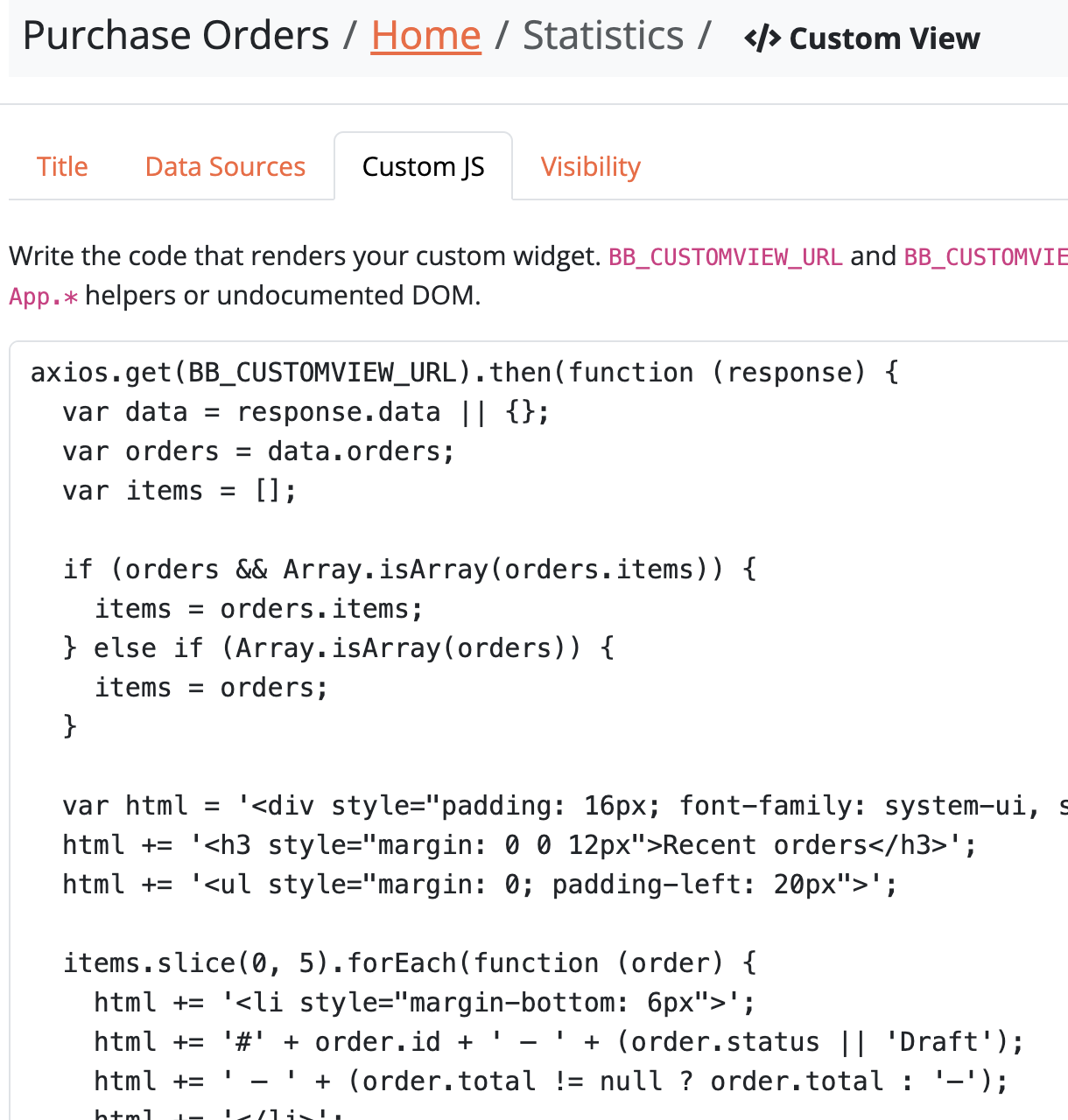
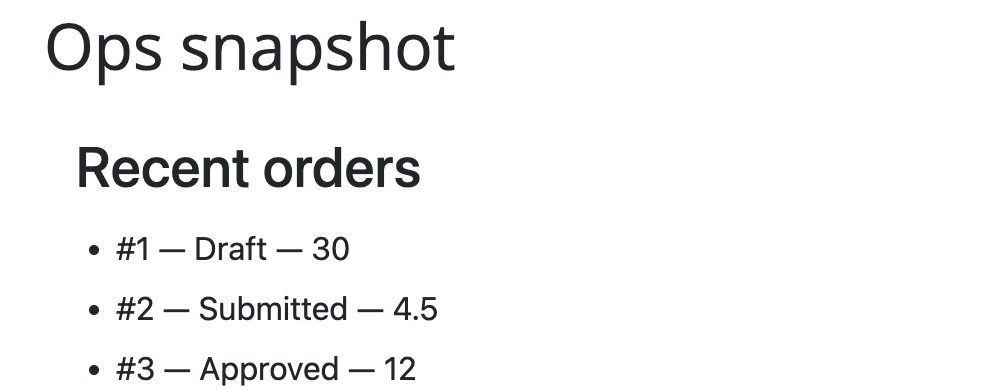
How to create a Custom View
- Drag a Custom View widget onto a page.
- Open the widget settings and configure one or more data sources.
- Write the Custom JS that fetches those sources and renders into the widget container.
- Optionally set a widget width so the view sits beside other widgets.
Data sources
Each data source tells Bobuild which records to expose to your script:
- Populate
[name]with records of type[object]— thenamebecomes the source key in requests - Filter — which records to include
- Sort — order of results
- Fields — map each object field to a variable name in the JSON payload (Populate
[variable]with[field])
Add as many data sources as you need (for example orders and customers on the same view). Each source returns at most 1000 records — design filters accordingly for large datasets.
Custom JavaScript
Your script runs in the live page. Two globals are provided:
| Variable | Purpose |
|---|---|
BB_CUSTOMVIEW_URL | Endpoint URL to load widget data (?view_id=…&action=datasource) |
BB_CUSTOMVIEW_CONTAINER | The DOM element where you should render the widget output |
Response from BB_CUSTOMVIEW_URL
Call BB_CUSTOMVIEW_URL once per page load. A single GET returns every data source you configured for the widget — you do not need a separate request per source.
The JSON body is one object whose keys are the data source names from Populate [name] with records of type (for example orders, customers). Each key maps to an array of records for that source. Property names inside each record are the variable names from your Fields mapping (Populate [variable] with [field]), not the raw object field identifiers.
Example when two sources named orders and customers are configured:
{
  "orders": [
    { "id": 1, "total": 99.5, "customer_id": 42 }
  ],
  "customers": [
    { "id": 42, "name": "Acme Corp" }
  ]
}
Each array is capped at 1000 records (same limit as in Data sources above).
A minimal pattern:
axios.get(BB_CUSTOMVIEW_URL)
  .then(function (response) {
    var orders = response.data.orders;
    var customers = response.data.customers;
    BB_CUSTOMVIEW_CONTAINER.innerHTML =
      '<pre>' + JSON.stringify(response.data, null, 2) + '</pre>';
  });
Replace the <pre> dump with your own HTML, charting library, or components. Keep error handling and empty states in mind so operators are never left with a blank box.
Custom View data sources are read-only. If your UI needs to create or update records, define API endpoints (Create / Modify) and authenticate them with Browser Session. Call them from your script with credentials: 'include' so the logged-in user’s session is used — no API key in page source.
Develop the script on a staging app first. Custom View code runs for every visitor of that page with the same privileges the page already has.
Widget width
On the widget title/settings tab, Width controls how much horizontal space the Custom View occupies: 100%, 75%, 50%, 33%, 25%, or 16% (default 100%).
Use narrower widths to place a custom tile next to a grid or detail widget on the same page — richer layouts without nesting pages.