Record operations
Most automations eventually create, change, copy, or remove data. Record operations are the task actions that do that work — so workflows can open a case, clone a template, append a tag, stamp a due date, or clean up obsolete rows without leaving the no-code builder.
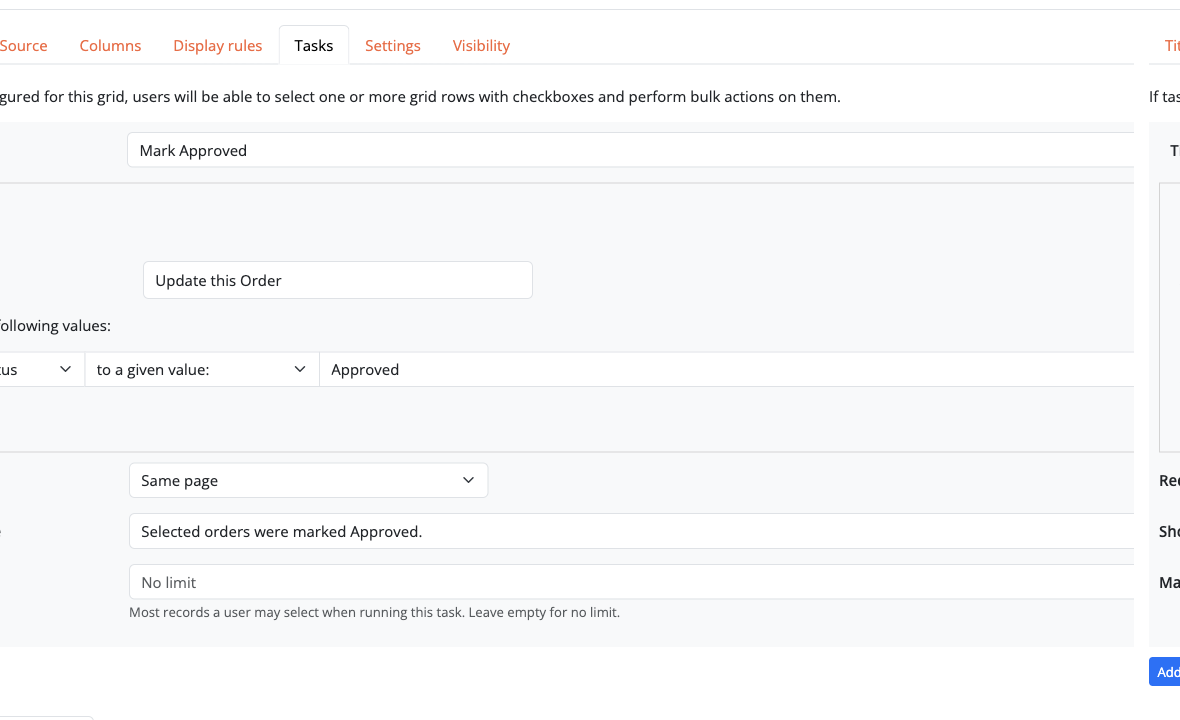
Typical scenarios:
- on form submit, create a related invoice and link line items;
- from a grid, bulk-update status on selected requests;
- duplicate a standard checklist for each new project;
- delete draft records that were never submitted;
- set a field from a formula the moment a record is created;
- stamp a gapless invoice or protocol number with to next sequence value.
See also Introduction to tasks for conditions, multi-record ordering, and nested tasks.
Create
Create a new record adds a row in the current object or another object. You map each field to a fixed value, a value from the current record, a formula, or to next sequence value on a unique Number field.
Use create when a workflow must produce related data automatically (an invoice after products are selected, a history log entry, a child task list). After create, follow-up pages can open the new record for the user.
When uniqueness constraints apply, Bobuild skips creating a duplicate instead of failing the whole run: if another record already matches any uniqueness group on the object, no new row is inserted. Either way — real insert or reuse — that row becomes the last created Object for later actions in the same task run (and for follow-ups). The Create field map is applied only on a real insert; a reuse leaves the existing row’s values unchanged. Useful for “ensure this related row exists” patterns (for example a per-year counter).
Update
Update this Object (or update records of another type, with an optional filter) changes existing fields.
Field operations include setting a value, clearing it, and the array / formula / sequence / file-hash options below. Updates are the workhorse of status changes, assignments, and calculated stamps. Assignments to auto fields or the primary key are ignored at runtime (App Health flags them) — keep those values under automatic rules instead.
Next sequence value
On a Number field that is part of a uniqueness constraint (alone or with other fields), set the field to next sequence value. Bobuild allocates the next integer for that uniqueness key in the same transaction as the save — gapless for that key, including after rollbacks. The first value is 1.
Use this for invoice numbers, protocol IDs, and similar public counters. See the Sequential counters recipe for keyed sequences (for example one counter per year).
Duplicate
Duplicate this Object (or Duplicate one or more records of another type) copies an existing row into a new one — all fields except the id, including files and images — then optionally overrides selected fields.
Use it to clone a template order, a recurring event, or a standard checklist without retyping.
Global objects cannot be duplicated (there is only one shared record by design).
Delete
Delete this Object (or delete matching records of another type) removes rows as part of a controlled workflow — for example purge rejected drafts after review, or remove staging copies after publish.
Prefer filters and conditions so deletes never run broader than intended. Task deletes are best when the removal is tied to a user action or schedule.
If a delete action removes the current task record, later actions in the same task (and later unconditional tasks on the same widget) will match nothing. The Builder shows a warning in that case — put the delete last, or delete a related object instead of the task record when follow-up steps still need it.
Delete all records (Builder)
For a full wipe of one or more objects (not a workflow action), open the object in the Builder and choose Delete all records…. You can select several objects in one run; the job is queued and cannot be undone. Prefer a snapshot first when the data might still matter.
Array field values
For Multiple Choice and Reference Array fields you can:
- to one more value: / to one less value: — add or remove a fixed value
- to one more value from / to one less value from source's field — append or remove a value taken from another field (on update actions; deduplicates automatically on add)
When the source field is a Reference, you can pick the linked record's ID as well as its other fields.
Formulas
Set a text, number, or date/time field to the result of a formula using placeholder functions. This works on both create and update actions, so you can stamp calculated codes, due dates, or totals as soon as the record exists.
Which record the formula reads depends on the action:
- Create — placeholders are evaluated against the current task record (the record the task is running on). There is no target row yet.
- Update / Duplicate — placeholders are evaluated against the record being written (the action’s target object).
The formula editor helper shows which object those tags belong to.
File name or hash into a text field
From a File or Image field you can:
- set a text field to the source file/image — Bobuild copies the stored file name (not the binary content);
- store to the hash of a file field into a text field when you need integrity checks or audit trails after upload (SHA-256).
Markdown from a Docx
On an update (or create) action, assign a Long Text field with Markdown semantics to Markdown extracted from a File field that holds a .docx. Bobuild converts the Word document into Markdown and stores it in the text field — useful after upload or document generation when you want searchable/editable body text beside the binary.
The destination must be Markdown Long Text; plain text fields do not offer this operation.
Remote files
Remote file fields point at documents in SharePoint (see SharePoint remote files). Task actions:
| Action | Purpose |
|---|---|
| Create a remote file (SharePoint) | Create a blank Office file in a folder, or upload from a local File field; folder path can be static or taken from a text field |
| Delete a remote file | Delete the remote item and clear the pointer (and cache). Unlinking on a form does not delete remotely |
| Copy remote file into a File field | Download into a File field as original or PDF |
Common pattern after document generation: Docx → File → create remotefile → Remote file field. Remote files can also be attached to e-mails (via cache).
Follow-ups after create
When a form (or importer) task creates a record, follow-up rules can redirect the user to a page that needs that new record — for example open the detail page of the invoice just generated. Bobuild tracks the last created record so destination pages receive the right id.
Configure this under the form’s Follow-up (or the importer’s Follow-Up) tab: same page, parent, a child page, or another page in the app.